Short answers with pictures. Tap a topic to jump to it.
Get started
- 1Add your carTap Add car on the Garage. Scan the barcode in the driver's door jamb, or type the VIN or the year, make and model.
- 2Answer Quick setupA few taps on what was done recently. “Not sure” is fine: we treat it as due soon so nothing slips.
- 3Add more carsOne Pro plan covers up to 4 cars. Tap Add car again for each one, then switch between them with the car tabs on the Garage.
- 4Turn on remindersWith Pro, you get an email before each service is due. You can add phone notifications on the last setup screen or in Settings.
Stay on top of reminders
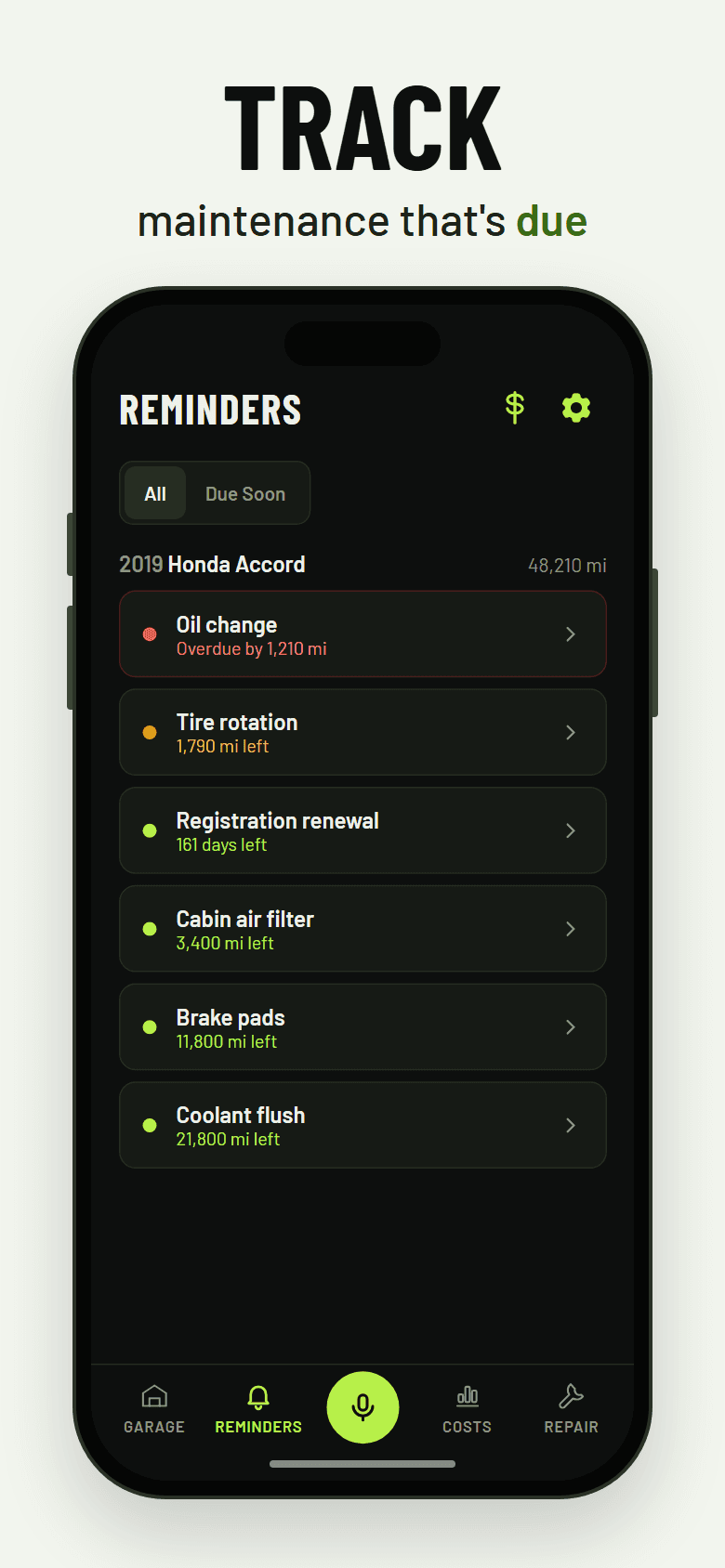
The Reminders tab lists every service for every car.
- Overdue
- Due within 1,000 miles (5,000 for big jobs) or 30 days
- Fine for now
Tap a service, then Complete when it’s done. The next one is scheduled for you.
Update your mileage now and then. We estimate it from how much you drive, but a real reading keeps due dates accurate. On the Garage, tap the mileage under your car’s name, or tell the AI Assistant.
Buying the part yourself? Tap the round P on the oil sticker or a Coming up item to search Amazon or eBay for that part for your car.
Just ask
ProTap the AI Assistant mic in the middle of the bottom bar and talk, or type your question. It knows your cars. When it offers to log something, you check it and confirm, so nothing changes without you.
- “What's due on my car?”
- “Log a $45 oil change at 52,000 miles”
- “How much did I spend last month?”
- “My check engine light says P0420”
- “What oil does my car take?”
- “Add a 2019 Honda Civic”
More examples are under More → What you can ask.
Track what you spend
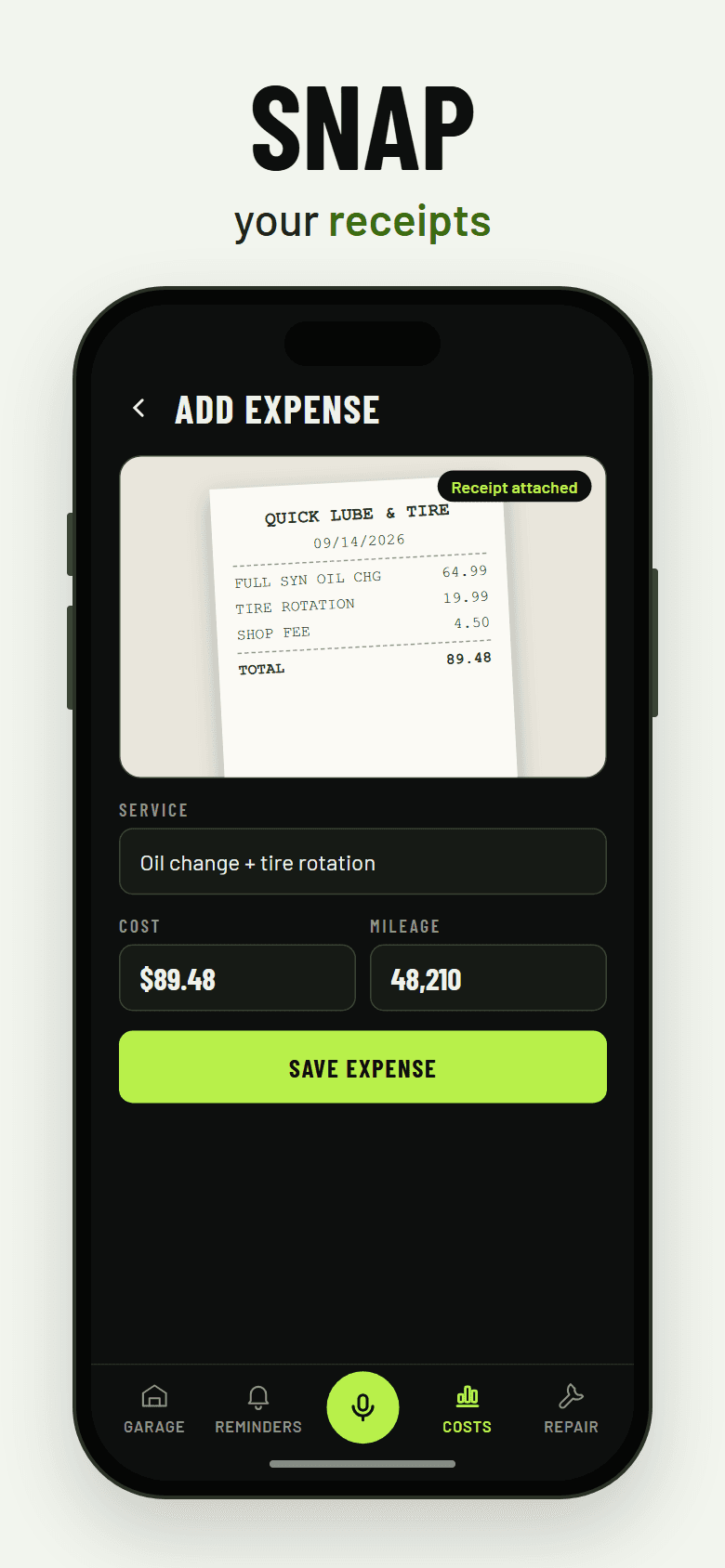
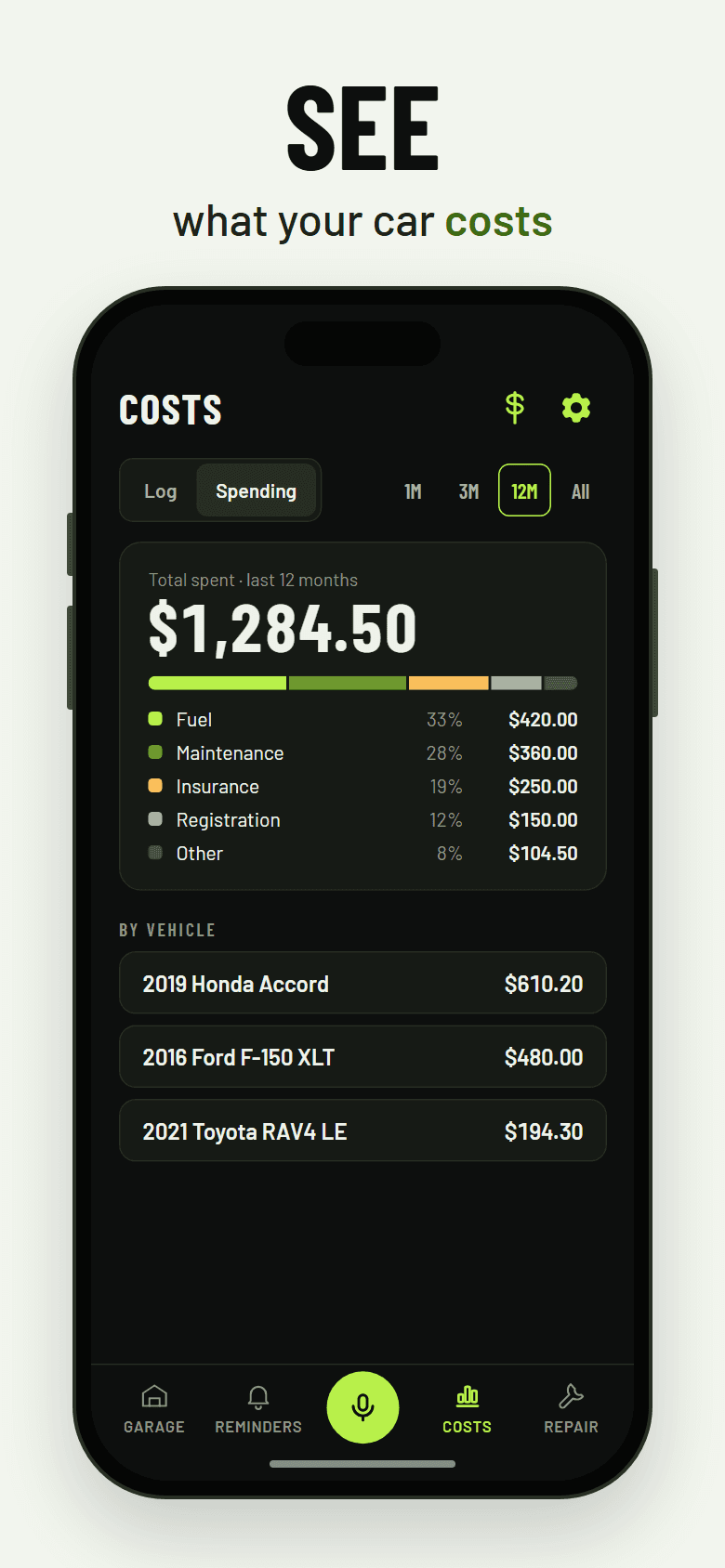
Log a repair or fill-up from Costs, the chart icon at the top of every page. Snap the receipt so it’s there when you need it, then see where the money goes under Spending.
Repairs
ProDiagnose has its own tab. The rest are under More.
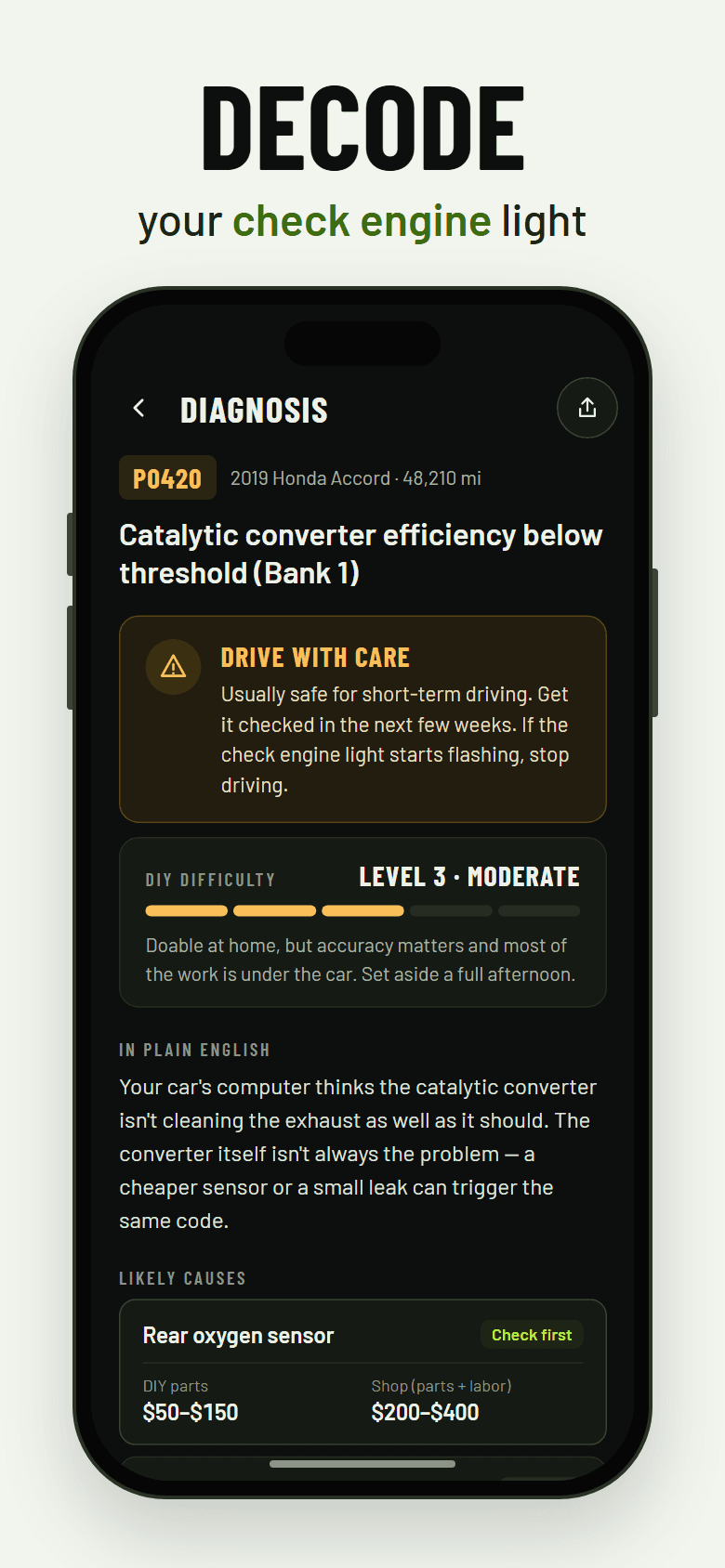
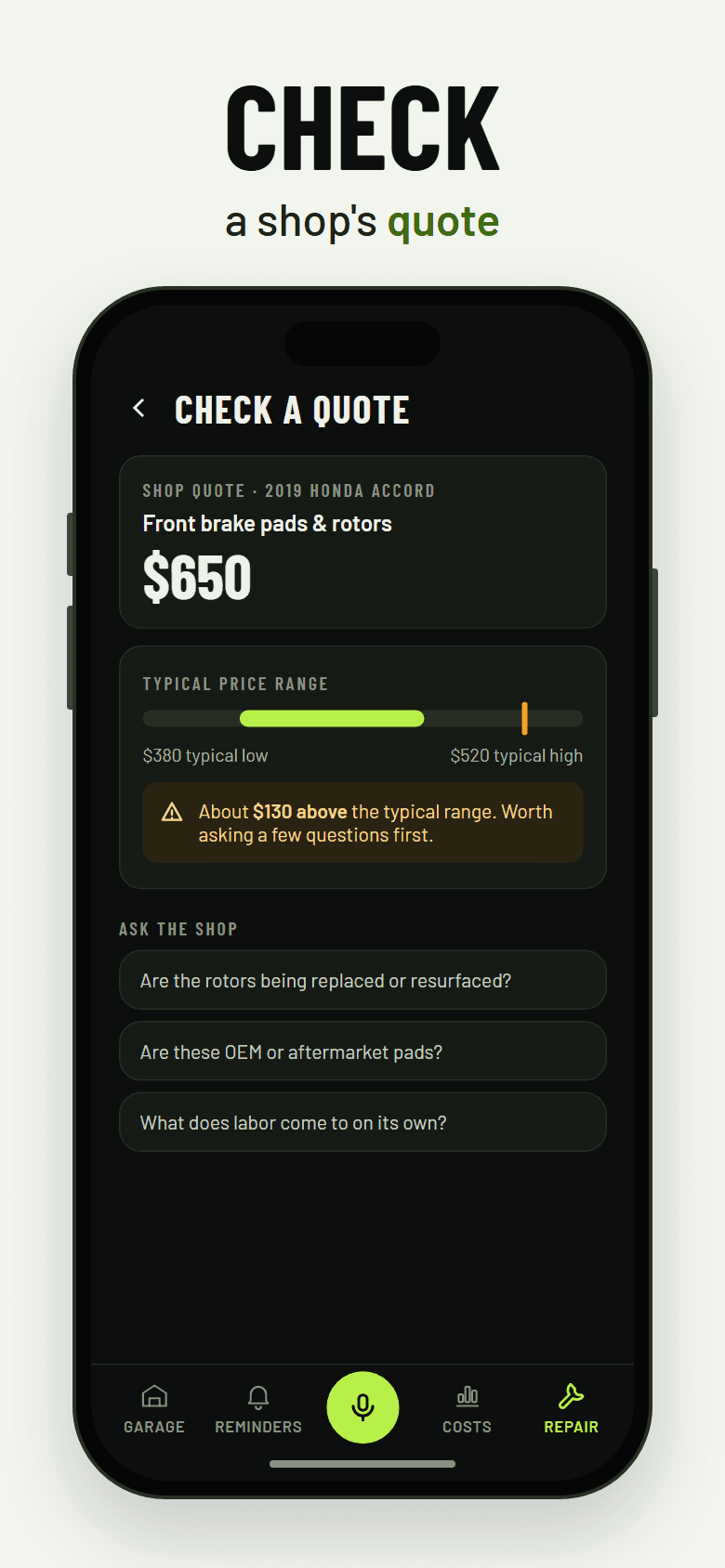
Answers are AI-generated general information, not a mechanic’s verdict. Have a qualified mechanic confirm before you commit to a repair.
Add it to your home screen
It opens like an app, with nothing to download from an app store. On iPhone it’s also the only way to get phone notifications (iOS 16.4 or later).
- Open it in Safari
- Tap the Share icon
- Tap Add to Home Screen
- Open it in Chrome
- Open the menu
- Tap Install app
Still stuck?
See the FAQ or email support@kilelegroup.com.